Getting started
-
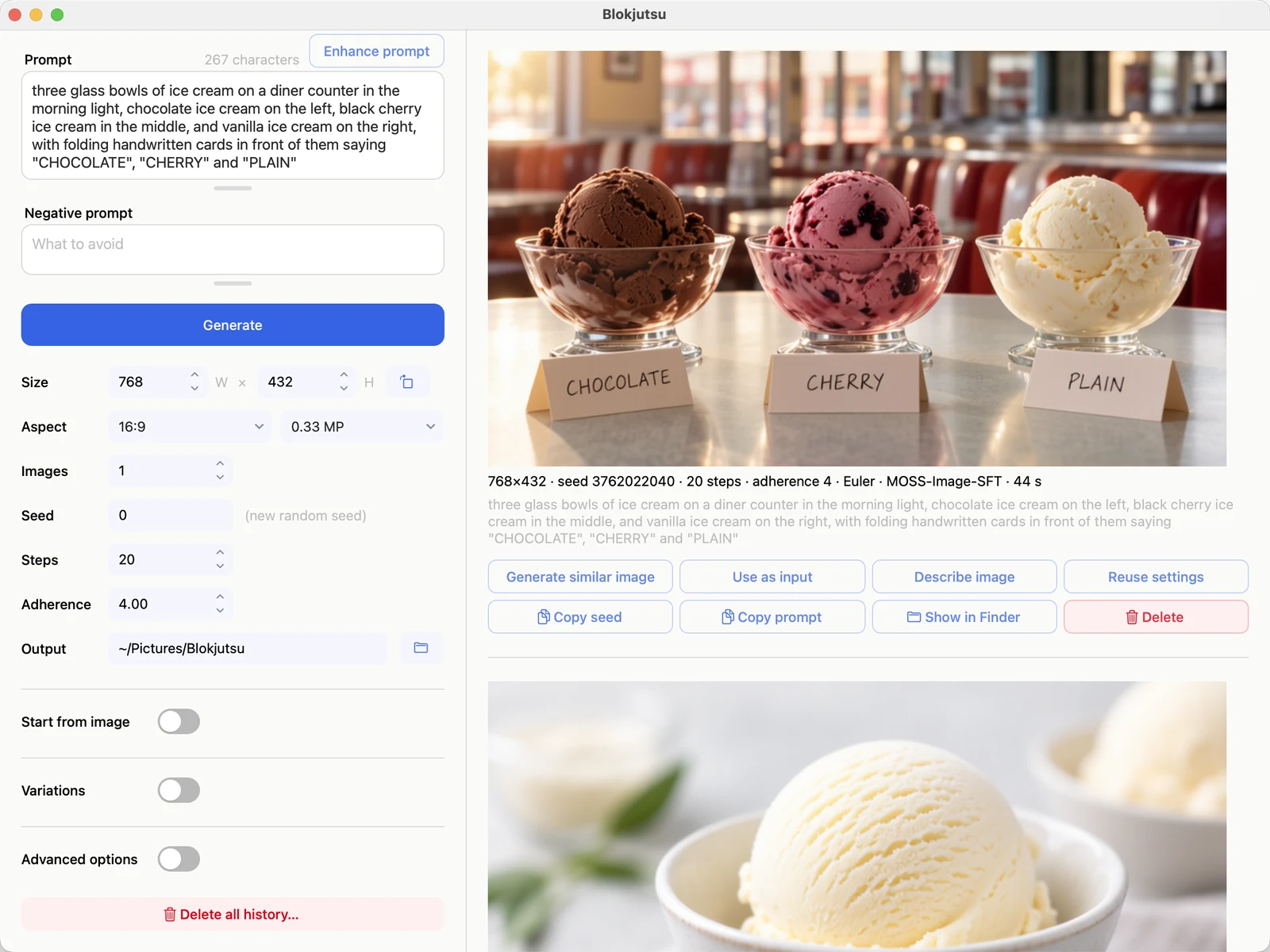
Type a description in Prompt, for example:
three glass bowls of ice cream on a diner counter in the morning light, chocolate ice cream on the left, black cherry ice cream in the middle, and vanilla ice cream on the right, with folding handwritten cards in front of them saying “CHOCOLATE”, “CHERRY” and “PLAIN”
- Press Generate (or ⌘-Return).
- A card appears on the right. It shows the step it’s on, the time taken so far, and the time left, and a preview that sharpens as it goes. Cancel stops it.
Every picture is saved automatically, with all of its settings, in the Output folder.
What to try next
- Press Generate again: you get a different picture, because the Seed is new each time.
- Make the prompt longer and more specific. MOSS-Image rewards detail; see Writing prompts.
- Click Enhance prompt to have the model write a more detailed version of your prompt.
- Click Layout… to say exactly where things go, with boxes on the picture.
- On a picture you like, click Generate similar image for close variations.
- Click Use as input to start a new picture from it.
- Click the bold name of any control, such as Seed or Change, for a one-line explanation.
- See what each setting does, side by side, in the Examples.